Hi, new Mac user here. I hope this is the right place to ask. So I have a problem. I was trying to connect my SD card to the laptop, but I can’t find where it is. I know it’s probably a dumb question to ask, but I’m pretty sure I checked every setting I could find. Can someone tell me where to find SD card on Mac?
Welcome, @simplyava! Don’t worry at all, this is actually one of the most common questions first-time Mac users have. Well, often the card itself is completely fine. Macs just handle external storage a little differently than Windows.
When you insert the SD card, it should normally appear either on your Desktop or in the left sidebar of Finder. If you don’t see it there, it may simply be hidden in Finder settings.
Here is how you can see SD card on Mac:
-
Open Finder (the smiley face icon in the Dock).
-
In the top menu bar, click Finder > Settings.
-
Under the General tab, make sure “External disks” is checked.
-
Then open the Sidebar tab and check “External disks” there too.
After that, reconnect the SD card and check Finder again under “Locations.”
Thanks so much @Lucas ! I tried following the steps, but I’m still having the same issue. “External disks” was already checked in both locations. I plugged it back in and waited, but nothing shows up. Neither on the Desktop nor in Finder. I’m starting to get a bit worried, I have some important photos on that card 
Have you tried restarting your Mac with the card already inserted? Occasionally macOS detects removable drives properly after a reboot.
Good suggestion from @JamieOnline. If that doesn’t help, the next thing I’d check is Disk Utility. It can often still detect it at the system level, even if Finder doesn’t show it.
-
Press CMD + Space.
-
Type “Disk Utility” and press Enter.
-
Look at the left panel. Your SD card may appear there even if it’s greyed out.
-
If you see it, select it and try clicking Mount at the top.
Let us know exactly what appears there, even if it’s greyed out or not clickable.
Okay, I tried restarting and still no luck. I opened Disk Utility like @iDeviceFan_73 suggested. I can see something that might be the card. It says “NO NAME” and it’s greyed out. When I click Mount, it gives me an error.
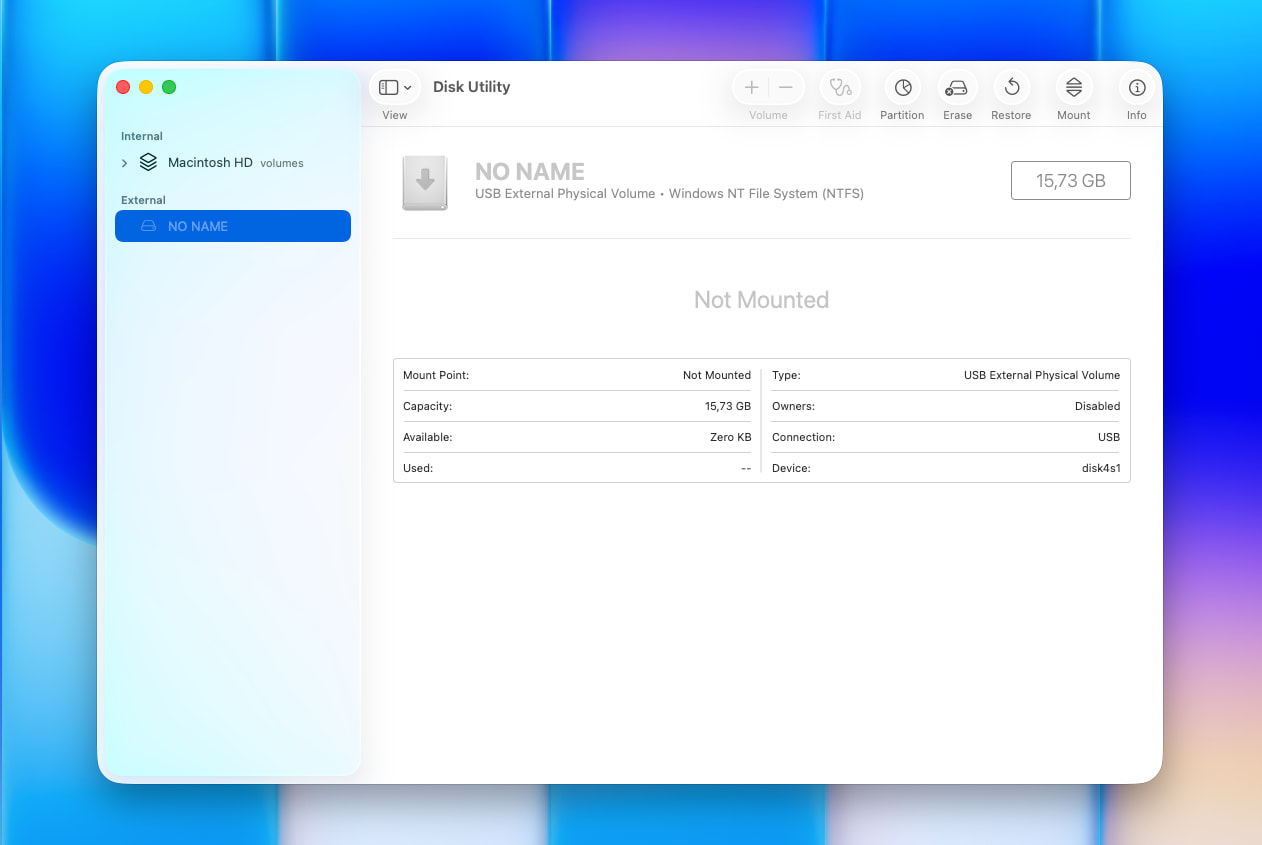
Honestly, that’s still a good sign compared to the card not showing up at all. It means macOS can at least detect the SD card hardware. Usually when a card appears greyed out like that, it points to a mounting or file system problem, although hardware issues are still possible too.
Since the photos are important, I’d avoid experimenting with too many fixes. It’s waaay safer to recover the files first. I’d also strongly recommend creating a byte-to-byte backup image of the SD card before you scan it directly. SD cards are very sensitive once they start acting up, and repeated scans or repair attempts can sometimes push them over the edge. Most decent data recovery programs let you create an image first, then scan the image instead of the actual card.
For this situation, you’ll need a proper data recovery tool because they can often scan SD cards even when macOS fails to mount them normally, as long as the device still appears in Disk Utility. From personal experience, something beginner-friendly like Disk Drill is probably the easiest option here since the interface is simple and it has built-in backup imaging too.
After you recover the important files, then you can safely experiment with repairs like First Aid in Disk Utility:
-
Select the SD card in the left panel.
-
Click First Aid at the top.
-
Let the scan finish and follow any prompts macOS gives you.
Sometimes that’s enough to repair minor file system corruption and get the card mounting normally again.
Do you remember how the SD card was formatted originally? Macs work best with exFAT and FAT32. Certain file systems can occasionally cause mounting problems on macOS.
I think it was exfat, but I’m not completely sure…
@simlyava If other fixes don’t work, you can reformat the card after you recover the files. I actually saw the same advice on another Mac forum a while ago. But honestly, in a lot of cases formatting is more of a temporary fix than a permanent solution, especially once an SD card already starts acting unreliable. I’d definitely avoid keeping your only copy of important photos on it long-term and maybe grab a couple of spare cards too, just in case this one starts failing again later.
On Mac, you can reformat the card like this:
-
Open Disk Utility.
-
Click View > Show All Devices.
-
Select the SD card itself in the left panel.
-
Click Erase at the top.
-
Choose exFAT as the format.
-
Click Erase and wait for macOS to finish.
If it really was exFAT, then macOS should normally read it without problems. This sounds more like the file system got corrupted somehow. I’d definitely avoid reformatting the card right now since that could make photo recovery harder.
One more thing @simplyava : in Disk Utility, click View at the top and choose “Show All Devices.” Sometimes the actual SD card only shows up properly there instead of just the volume underneath it. You can also try a different SD card adapter. I’ve seen faulty adapters cause weird mount errors before.
Final update!!! I downloaded Disk Drill like you guys suggested, and it actually found almost all of my photos. I copied everything important to my Mac first and only then tried First Aid again, but it still failed. After that I reformatted the SD card in exFAT like @Lucas said, and now it mounts normally in Finder again and shows up instantly when I insert it.
I’ll keep an eye on the card for a while to see if it stays stable or starts showing problems again before I decide whether to replace it.
Really appreciate all the help here. As a new Mac user I genuinely thought I was doing something wrong at first or that the card was completely dead. You probably saved years of photos for me 